A captive portal login is the web page a public WiFi network shows you before it lets you online. Join the guest network at a hotel, airport, cafe, or office, and instead of instant internet you get a branded sign-in screen: accept the terms, enter your email or room number, watch a short message, or pay for a pass. Complete the step and the network opens up; skip it and you stay "captive" with no access.
That is the happy path. The unhappy path is the one everyone has lived through: the network says "connected," no login page ever appears, and nothing loads. Both behaviors come from the same mechanism, so it is worth understanding how the login actually works - the fix follows directly from it.
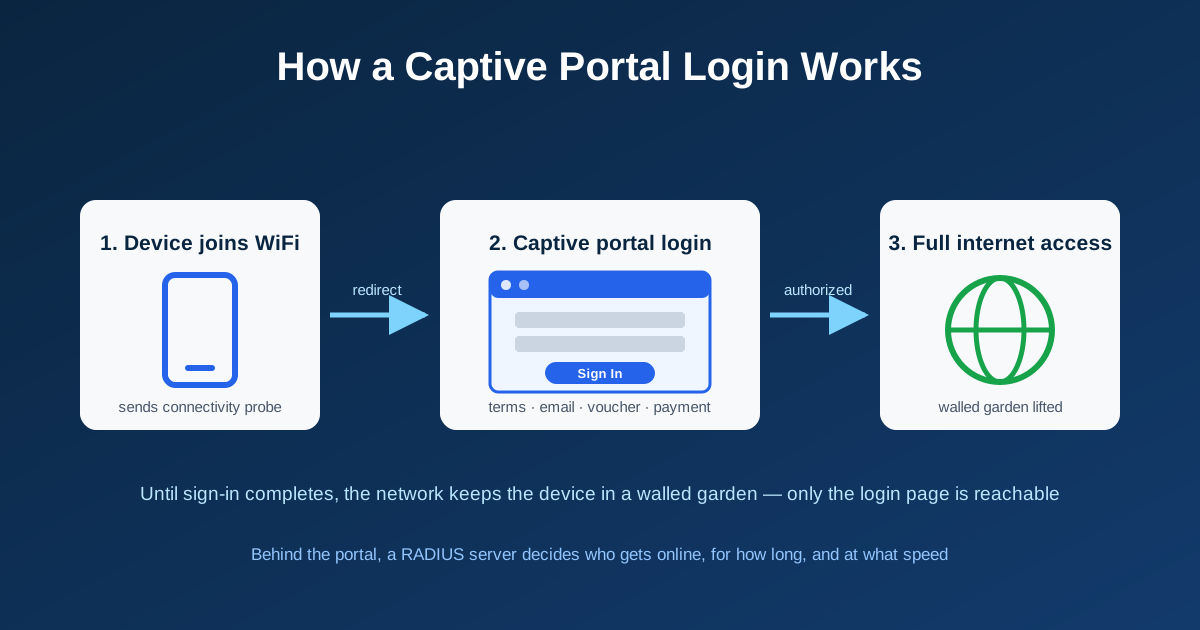
How a Captive Portal Login Works
When your device joins a WiFi network, it immediately checks whether the internet is really reachable. iPhones request a tiny page at captive.apple.com, Android asks connectivitycheck.gstatic.com, and Windows probes msftconnecttest.com. On an open network, those probes succeed and the WiFi icon just works.
On a portal-protected network, the access point or gateway holds your device in a restricted state - often called a walled garden - where the only thing you can reach is the login page itself. The probe request gets intercepted and redirected, your device notices the response is not what it expected, and it pops up the sign-in window you see at hotels and airports.
- Connect: your device associates with the open guest network and receives an IP address
- Probe: the device silently requests a known test URL to check for internet access
- Redirect: the gateway intercepts the request and answers with the portal's login page instead
- Authenticate: you accept terms, enter details, use a voucher or social account, or pay
- Authorize: the portal tells the network to release your device - on business-grade networks this decision is made by a RADIUS server
- Online: the walled garden drops away and normal traffic flows
On networks built for scale, step five is where the real access control lives: the portal hands your session to a RADIUS server that decides who gets on, for how long, and with what bandwidth limits. The login page is just the visible tip of that machinery. Newer standards (RFC 8908) even give devices a clean API to discover portals instead of relying on intercepted probes, though adoption is still uneven.
Why the Captive Portal Login Page Won't Show Up
The portal depends on being able to intercept your traffic - and modern devices are increasingly designed to prevent exactly that. When the login page refuses to appear, it is almost always one of these:
- Everything you try is HTTPS. The network cannot rewrite an encrypted page without triggering certificate errors, so browsing to
google.comgives you a security warning or a spinner, not the portal - A VPN is on. The VPN tunnels or blocks everything before the portal can redirect it - many corporate VPNs do this on purpose
- Private DNS / secure DNS is enabled. Encrypted DNS (DoH/DoT) bypasses the network's DNS tricks, which many portals rely on
- Your device cached an old answer. Stale DNS entries or a remembered network state make the device skip the probe
- Manual network settings. A static IP or hard-coded DNS server (like 8.8.8.8) can route around the interception
- The popup was dismissed. The login window appeared once, got swiped away, and the OS will not show it again until the connection resets
How to Force the WiFi Login Page to Open
Work down this list - the first two steps resolve the majority of cases:
- Open a plain-HTTP site: type
http://captive.apple.comorhttp://neverssl.cominto your browser. An unencrypted request gives the network something it can legally redirect, and the login page appears - Forget the network and rejoin: this clears the cached state and forces a fresh connectivity probe (and a fresh login popup)
- Turn off your VPN and private DNS until you have signed in, then turn them back on
- Set IP and DNS to automatic for this network - portals assume DHCP
- Browse to the gateway: the router address (commonly
192.168.1.1or10.0.0.1) often serves the portal directly - Reset the connection: toggle airplane mode, or turn WiFi off and on, to restart the whole sequence
The One-Line Fix Worth Memorizing
On any device, in any browser: go to http://captive.apple.com. It is plain HTTP, it exists solely for this purpose, and it triggers stubborn captive portal logins on iPhone, Android, Windows, and Mac alike.
Are Captive Portal Logins Safe?
Mostly - with two caveats worth knowing. First, the portal only controls access; it does not encrypt anything. Most guest networks are open, so treat them like any public connection: verify the network name with staff (attackers set up look-alike "evil twin" hotspots), never enter account passwords or card details on a page that is not HTTPS, and switch your VPN back on once you are through the login.
Second, the industry itself is moving past the login page. Passpoint (Hotspot 2.0) lets phones connect automatically to trusted networks with WPA-Enterprise encryption and no portal at all - the same experience as cellular. For a deeper look at when each approach makes sense, see our comparison of Passpoint and captive portals.
Setting Up a Captive Portal Login for Your Business
If you are on the other side of the login page - a hotel, cafe, coworking space, school, or venue that needs guest WiFi - the portal is where access control, branding, and compliance meet. A hosted captive portal solution runs the login page, authentication, and session limits in the cloud on the access points you already own: guests sign in with email, social accounts, SMS codes, vouchers, or payment, every visitor gets individual credentials, and GDPR consent is built into the flow.
The mechanics take minutes rather than days - our step-by-step captive portal setup guide walks through the whole process, from splash page design to connecting your access points.
Launch Your Own Guest WiFi Login
IronWiFi runs branded captive portal logins - social login, email capture, SMS verification, vouchers, and payments, with RADIUS-grade access control on your existing hardware.
Start Free Trial Explore Captive Portal See PricingConclusion
A captive portal login is a simple contract: the network holds new devices in a walled garden until they identify themselves on a sign-in page. When the page will not load, it is because modern encryption is doing its job - so give the network one unencrypted request (http://captive.apple.com) and the login appears.
And if you operate guest WiFi yourself, the same mechanism is your front door: a branded login that welcomes visitors, keeps them isolated from your internal network, and satisfies the compliance checkbox - without handing out a shared password.

Daniel Konecny
Blog Writer, IronWiFi
Daniel writes about enterprise WiFi authentication and identity security at IronWiFi. With deep expertise in RADIUS, 802.1X, and cloud infrastructure, he covers practical network security for IT teams managing thousands of devices.
About the author